

Use this healthcare employee offboarding checklist to remove access, preserve records, protect patient data, and maintain care continuity securely in practice.

Microsoft released its October security updates on October 13, 2026, addressing an actively exploited Windows Shell vulnerability. The vulnerability is rated High, with a CVSS score of 8.8. For healthcare organizations, the immediate priority is verifying that supported Windows devices received the applicable update. QUICK ANSWER Ask your IT provider to verify successful installation, identify failed or offline devices, complete required restarts, and document unresolved exceptions.
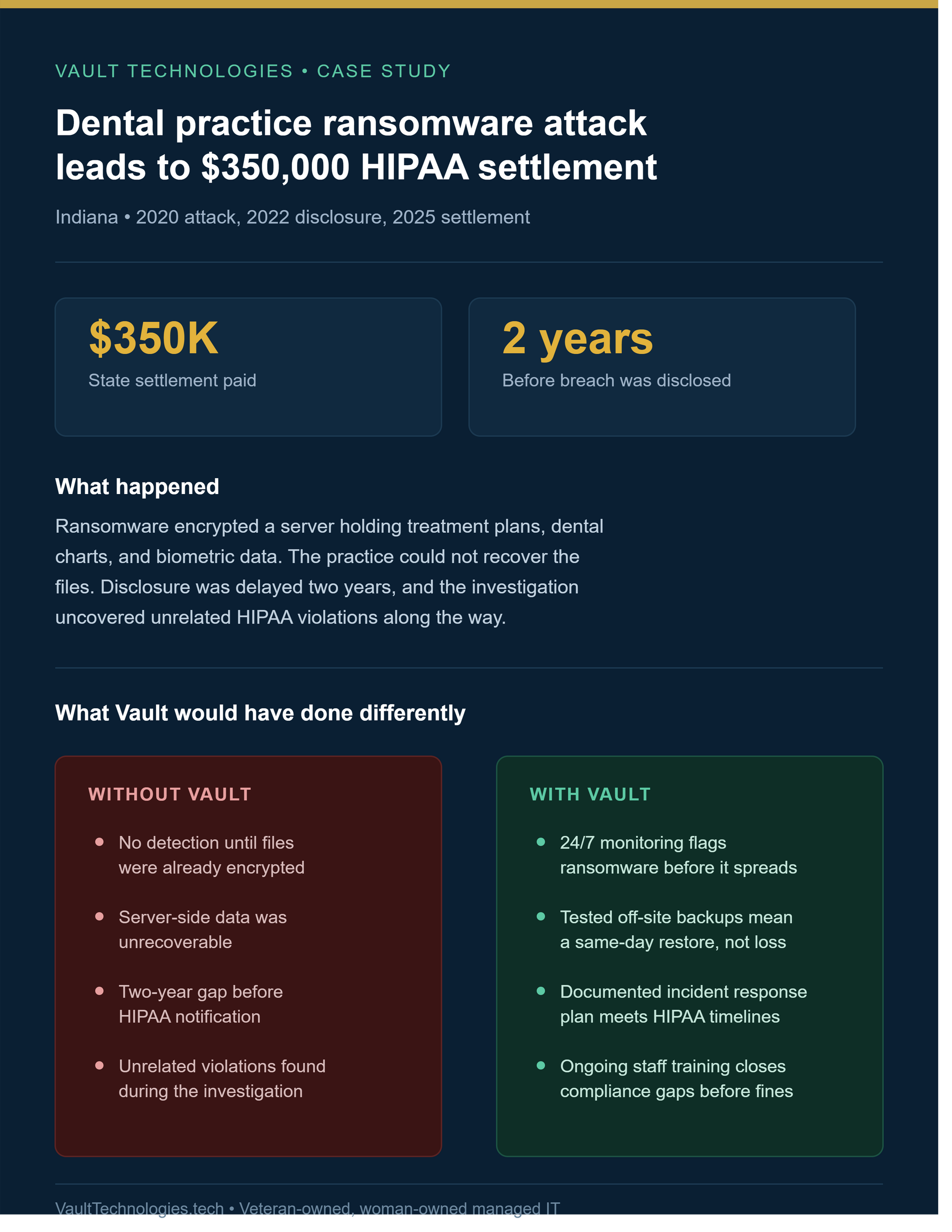
A $350,000 dental ransomware settlement shows why practices need documented incident response, tested backups, clear vendor ownership, and legal review plans.

A January 2025 ransomware attack on a Maryland medical group exposed 934,000 patient records and triggered class-action lawsuits. See what proactive IT management would have changed.

See how Vault Technologies combines healthcare IT, cybersecurity, clinical insight, and care-continuity planning for Oregon healthcare organizations and practices.

Use this 12-record healthcare IT documentation checklist to organize systems, vendors, user access, backups, downtime plans, and technology priorities safely.

When an employee leaves a healthcare organization, disabling one email account is not enough. The departing person may have access to an EHR, Microsoft 365, shared mailboxes, cloud files, clinical applications, scheduling systems, billing platforms, remote-support tools, mobile devices, door controls, vendor portals, and locally stored information. At the same time, immediately deleting every account can remove email, documents, contacts, calendars, workflow knowledge, or files another employee needs to continue patient care and business operations. Effective offboarding must accomplish two goals together: End the departing person’s access. Preserve the organization’s information and responsibilities. Quick Answer: How should a healthcare organization offboard an employee? Use a coordinated checklist owned by an authorized manager and completed by HR, IT, and relevant application owners. At the approved departure time: Disable sign-in through the authoritative identity system. Revoke active sessions and authentication tokens. Remove access from the EHR and other applications that do not deactivate automatically. Recover or secure organization-owned devices, badges, keys, and authentication methods. Preserve and transfer business records before deleting accounts or licenses. Redirect necessary communications to an approved employee or shared mailbox. Document every completed action, exception, owner, and timestamp. Verify that access is actually unavailable. Microsoft explains that disabling a user does not necessarily end every active application session immediately. Applications can maintain their own session tokens, and those sessions may require separate deprovisioning. Why healthcare offboarding is more than an HR task A departure changes several kinds of access at once. Identity access This includes: Microsoft 365 Microsoft Entra ID Active Directory Workstation sign-in VPN access Remote desktop Password-management systems Multifactor-authentication methods Single sign-on Administrative accounts Clinical and operational access This may include: EHR and practice-management systems Electronic prescribing Clinical messaging Laboratory and imaging portals Pharmacy platforms Scheduling systems Telehealth and remote-patient-monitoring tools Billing and claims systems Medical-device portals Hospice or home-health applications Resident or care-management platforms Physical access This may include: Building keys Access cards Alarm codes Medication-area access Server or network closets Records rooms Organization vehicles Storage areas Information ownership The departing employee may control or possess: Email conversations Patient-service communications Calendars OneDrive files Shared documents Vendor contacts Procedures and checklists Device passcodes Project files Records stored outside approved shared locations A reliable process must address all four areas. What does HIPAA say about terminating access? The HIPAA Security Rule requires regulated organizations to maintain policies and procedures so workforce members have access appropriate to their roles. HHS’s audit protocol specifically addresses procedures for terminating access to electronic protected health information when employment or another workforce arrangement ends. It also examines access-control devices, contractors, role changes, termination timeframes, exit procedures, and documentation showing that access was removed in a timely manner. The exact safeguards appropriate for an organization depend on its size, structure, systems, risks, and circumstances. HHS describes the Security Rule as flexible, scalable, and technology-neutral. This article provides operational guidance, not a legal conclusion or compliance certification. Start before the employee’s final day Good offboarding begins during onboarding. An organization cannot reliably remove access it never documented. Each workforce member should have an access record showing: Legal name and preferred name Job title and department Manager Work location Start date Organization-owned devices Primary identity account Email addresses and aliases EHR role Application access Shared mailboxes Shared drives and cloud libraries Security groups Distribution lists Vendor portals Administrative privileges Mobile-device enrollment MFA methods Physical-access items Access approvals Training status This record should be updated when the person changes roles, locations, departments, or responsibilities. Planned and urgent departures require different timing Planned departure A resignation, retirement, contract completion, or scheduled transfer allows time to: Identify responsibilities that need reassignment Move files into approved shared locations Transfer vendor relationships Review shared mailboxes and calendars Document recurring work Recover equipment Schedule access removal Prepare an internal communication plan The employee should not be asked to share passwords. Access should be transferred through administrative controls. Immediate or high-risk departure An involuntary termination, suspected account compromise, policy violation, or credible insider-risk concern may require access to be removed before or during the separation meeting. Coordinate the exact timing among authorized leadership, HR, IT, security, and legal or compliance resources as appropriate. Do not place termination details, allegations, medical information, or unnecessary personal information into an ordinary help-desk ticket. Record only what authorized technical personnel need to perform the approved actions. The healthcare employee-offboarding process Step 1: Establish the authorized request The request should identify: Employee or contractor Manager Last working date Exact access-removal time Planned or immediate departure Systems known to be used Equipment assigned Business records requiring transfer Approved mailbox or communication handling Authorized decision-maker Special legal, compliance, or safety instructions IT should not guess whether a departure is voluntary, immediate, or delayed. A specific cutoff time is safer than “sometime Friday.” Step 2: Identify the authoritative identity source Determine where the user account originates. Common configurations include: Microsoft Entra ID only On-premises Active Directory only Active Directory synchronized to Microsoft Entra ID A separate identity provider Independent accounts in each application In a synchronized environment, disabling an account in the wrong location may be ineffective or later overwritten. Microsoft advises organizations with synchronized identities to Step 3: Block sign-in and revoke sessions For Microsoft environments, the required actions may include: Disable the user in Active Directory or Microsoft Entra ID. Block new sign-ins. Revoke active sessions and refresh tokens. Disable or secure registered devices. Review authentication methods. Remove privileged roles. Remove application assignments. Remove group memberships where appropriate. Review recent sign-in activity when the circumstances justify it. Revoking sessions matters because an employee may already be signed in on a browser, mobile application, or workstation. Microsoft notes that applications can issue and control their own session cookies. Disabling the Entra account may not directly terminate a session maintained by another application. Step 4: Disable independent application accounts Not every healthcare application uses Microsoft Entra ID or Active Directory. Review the access list and disable the user directly in: EHR and practice-management systems Electronic-prescribing services Clinical messaging Laboratory and imaging portals Billing and clearinghouse platforms Telehealth systems Scheduling applications Vendor support portals Remote-access tools Backup consoles Security-camera systems Medical-device portals Password managers Cloud-storage services Website administration Social-media and marketing systems For each system, record: Action taken Date and time Administrator Account status Sessions terminated Access reassigned Exceptions Verification result Step 5: Address shared credentials safely Shared credentials make offboarding more difficult because the organization may not know who still possesses the password. When shared credentials cannot yet be eliminated: Change the password. Update approved password-management records. Revoke active sessions where possible. Replace shared MFA destinations. Review recovery email addresses and phone numbers. Notify only authorized users of the new access method. Record why the shared account still exists. Create a plan to replace it with named accounts. Do not email or text a new shared password to a large group. Step 6: Secure devices and locally stored information Identify every organization-owned or organization-managed device assigned to the person: Desktop Laptop Tablet Smartphone External drive USB storage Security token Smart card Printer or scanner storage Home-health or field device Medical device with local user access Record the asset tag, serial number, condition, return date, and responsible custodian. Before wiping or reassigning a device: Confirm that necessary files have been preserved. Confirm whether a legal or investigative hold applies. Check for locally stored business information. Remove the former user’s access. Validate encryption and device-management status. Follow the organization’s approved reset and redeployment process. Microsoft notes that a remote wipe requires the device to connect to the internet; an offline device may retain locally stored information until the command can run. Wiping also makes device data unrecoverable, so preservation decisions must come first. Step 7: Preserve email and cloud files before deletion Disabling access and deleting an account are separate decisions. Microsoft’s former-employee workflow recommends considering: Preserving mailbox contents Wiping or blocking mobile devices Forwarding necessary email Converting the mailbox to a shared mailbox where appropriate Assigning access to Outlook and OneDrive information Removing licenses Deleting the account only after required information has been handled Microsoft reports that deleting an account ordinarily begins a limited restoration period, but retention behavior depends on the account, licensing, configuration, workload, and applicable retention policies. Before deleting anything, determine: Who owns the business information? Who needs continuing access? Which records must be retained? Is a legal, compliance, or investigation hold required? Should email be forwarded? Should the mailbox become a shared mailbox? Where should OneDrive documents be moved? Are patient-care or billing tasks still pending? Are personal files mixed with organizational records? When will the account become eligible for deletion? Avoid relying on a temporary default-recovery period as the organization’s retention plan. Step 8: Reassign responsibilities Access removal is only half the process. Work must also continue. Reassign: Patient callbacks Referral coordination Prior authorizations Billing follow-up Vendor communication Shared calendars Scheduled reports Recurring meetings Equipment maintenance Domain or certificate renewals Subscription ownership Purchasing approvals Documentation ownership Emergency contacts After-hours duties Confirm that the replacement employee has appropriate access based on their role. Do not copy every permission from the departing employee without review. Step 9: Recover physical access Collect or deactivate: Building keys Access cards Alarm credentials Office keys Records-room access Server-room access Parking or gate credentials Organization identification Physical security tokens Organization payment cards If a shared physical code was known to the departing person, determine whether it must be changed. Step 10: Verify the result The technician who completed the checklist should verify that: The former user cannot sign in. Active sessions were addressed. EHR and clinical-system accounts are inactive. Administrative roles were removed. Remote access is unavailable. Mobile-device actions are complete or pending. Email and files are assigned correctly. Equipment is returned or listed as outstanding. Physical access is removed. Exceptions have owners and deadlines. Completion evidence is retained. For higher-risk departures, consider having a second authorized person review the completed checklist. Why deleting the Microsoft 365 license first can cause problems License removal may appear to be the fastest way to stop access, but it should not be the first or only step. Removing a license does not replace: Blocking sign-in Revoking sessions Disabling other applications Preserving email Moving OneDrive files Reviewing shared mailboxes Securing devices Removing physical access Documenting completion It may also change how email, files, applications, and retention features behave. The safer sequence is generally: Disable access. Revoke sessions. Preserve and transfer required information. Reassign communications and responsibilities. Remove licenses when appropriate. Delete the account only after retention and operational requirements are resolved. The exact sequence should reflect the organization’s Microsoft configuration and approved policy. Common offboarding failures HR tells IT too late If IT learns about the departure after the employee has left, accounts and sessions may remain available longer than intended. Correction: Require a standard request with an exact cutoff time. The Microsoft account is disabled, but the EHR remains active Independent healthcare applications may not receive identity changes automatically. Correction: Maintain an application-access list and assign an owner to each system. The account is deleted before records are transferred Email, files, contacts, calendars, or workflow history can become difficult to recover. Correction: Separate immediate access removal from later account deletion. Shared passwords are not changed A former employee may retain access to a shared portal even after their named accounts are disabled. Correction: Replace shared accounts where possible; otherwise rotate credentials and authentication methods. The employee’s mobile device remains connected Email, documents, messages, or application data may remain available through cached sessions or locally stored data. Correction: Use approved device-management and application-protection controls, and verify their status. No one takes ownership of ongoing work Patient callbacks, referrals, billing questions, or vendor renewals may be missed. Correction: Include operational reassignment in the offboarding checklist. Contractors are excluded Temporary staff, consultants, students, volunteers, agency personnel, vendors, and former owners may possess sensitive access. Correction: Apply the process whenever any workforce or business arrangement ends—not only when a payroll employee leaves. Why this matters to healthcare organizations Independent medical and dental practices One employee may manage scheduling, billing, vendor communication, and shared mailboxes. Deleting that account without transferring information can disrupt several workflows simultaneously. A short, repeatable checklist is more reliable than depending on one office manager’s memory. Hospice and home-health providers Remote staff may use mobile devices, home networks, cloud applications, and locally cached information. Offboarding must account for equipment return, remote sessions, mobile applications, and documentation needed by continuing care teams. Assisted-living and senior-living organizations Departing staff may have access to resident records, medication-related systems, scheduling, communications, door controls, and shared nursing-station devices. Clinical and physical access should be coordinated. Outpatient clinics EHR access is only one part of the environment. Laboratory, imaging, referral, prescribing, billing, and patient-communication portals may each require separate action. Small organizations using outside IT providers Leadership must communicate departures to the IT provider early enough to coordinate access removal. The organization should receive written confirmation showing which systems were addressed and which actions remain pending. Protect / Operate / Recover / Grow Protect Give each workforce member a named account. Require MFA where supported. Limit access according to job responsibilities. Separate ordinary and administrative accounts. Record assigned devices and applications. Eliminate unnecessary shared credentials. Review recovery emails, phone numbers, and authentication methods. Define urgent and routine departure procedures. Operate Maintain one access list for each workforce member. Require an authorized offboarding request. Include contractors, temporary staff, students, volunteers, and vendors. Coordinate HR, management, application owners, and IT. Use an exact access-removal time. Separate access suspension from account deletion. Record completion evidence and exceptions. Test the process with a tabletop exercise. Recover Preserve required email, files, and operational records. Maintain an approved method for restoring mistakenly deleted accounts or data. Document mailbox and OneDrive ownership. Escalate missing devices or unexpected access. Review sign-in activity when circumstances warrant it. Preserve relevant logs and records during an investigation. Confirm that patient-service responsibilities were reassigned. Grow Automate provisioning and deprovisioning where practical. Connect approved applications to centralized identity management. Reduce manually maintained accounts. Review access when employees change roles. Track offboarding completion time. Review recurring exceptions. Include access removal in vendor and contract requirements. Update the process when new systems are adopted. Microsoft recommends automated deprovisioning where possible and a documented manual process for applications that cannot be deactivated automatically. A simple offboarding record For each departure, retain: Person’s name Employment or relationship type Manager Approved cutoff date and time Request authorization Identity system disabled Sessions revoked EHR access removed Other applications removed Administrative privileges removed MFA methods addressed Device status Email disposition File disposition Physical-access status Responsibilities reassigned Exceptions Exception owners and deadlines Technician Completion date and time Reviewer, when required Do not place unnecessary private employment details in the technical record. The bottom line Healthcare employee offboarding is successful when the former worker can no longer access organizational systems, while the organization retains the information and operational continuity it still needs. The essential sequence is: Authorize. Disable. Revoke. Preserve. Transfer. Verify. Document. Do not confuse disabling an account with completing the entire process—and do not confuse deleting an account with securing it. Frequently asked questions When should a departing healthcare employee’s access be removed? Remove access at the time authorized by leadership, HR, or the organization’s approved procedure. Immediate or high-risk departures may require coordinated removal before or during the separation meeting. Planned departures should still have an exact cutoff time. Is disabling a Microsoft 365 account enough? No. Active sessions, independent applications, EHR accounts, mobile devices, shared credentials, physical access, and locally stored information may require separate action. Should the former employee’s account be deleted immediately? Usually not before required email, files, contacts, calendars, and business records are preserved or transferred. Immediate sign-in blocking and eventual account deletion are different actions. What happens to a former employee’s email? The organization may preserve the mailbox, grant authorized access, forward necessary messages, or convert it to a shared mailbox, depending on operational, privacy, legal, licensing, and retention requirements. Does changing the employee’s password end every session? Not necessarily. Tokens, application sessions, mobile applications, and independently managed systems may continue to operate. Administrators should disable access and revoke sessions using the appropriate identity and application controls. Does the process apply to contractors and temporary workers? Yes. Anyone with organizational access should have that access reviewed and removed when their employment, contract, placement, volunteer role, student rotation, or vendor relationship ends. How can a small healthcare practice manage offboarding without a large IT department? Use a short checklist, maintain an employee-access list, assign an owner to every application, notify the IT provider in advance, and require written completion confirmation. The process matters more than the organization’s size. Strengthen your access-management process Vault Technologies helps healthcare organizations document user access, coordinate Microsoft 365 and endpoint administration, improve onboarding and offboarding, reduce shared-account dependence, and create practical procedures that support both security and care continuity. Our nurse-led perspective helps keep technical decisions connected to patient workflows, staffing transitions, and reliable operations. Our veteran-owned team emphasizes accountability, clear documentation, and security-first support. A complimentary Technology Health Assessment can help identify gaps across identity management, endpoints, vendor access, documentation, backup planning, and continuity readiness. The assessment is a planning tool. It is not a legal opinion, compliance certification, penetration test, forensic investigation, or guarantee against a security incident. Authoritative sources HHS Office for Civil Rights — HIPAA Audit Protocol , updated July 2018. The workforce-security section addresses access authorization, role changes, termination procedures, access-control devices, contractors, and documentation. HHS.gov HHS — Summary of the HIPAA Security Rule , current version reviewed October 5, 2026. HHS.gov Microsoft Learn — Revoke User Access in Microsoft Entra ID , updated June 19, 2026. Microsoft Learn Microsoft Learn — Remove a Former Employee and Secure Data , updated June 15, 2026. Microsoft Learn CISA and NSA — Identity and Access Management Recommended Best Practices for Administrators , published March 2023.

An actively exploited ScreenConnect flaw affects remote-support clients. Learn what healthcare organizations should verify with their IT providers now.

When a healthcare system stops wo rking, the first question is not always, “How do we fix the computer?” The first questions are: Can employees continue caring for patients safely? Which services are affected? Who is coordinating the response? Could this be a cybersecurity incident? What information must be preserved? How will staff receive reliable instructions? A short outage can affect scheduling, medication information, clinical documentation, laboratory orders, referrals, billing, communications, and access to patient records. The first hour should be organized around care continuity, controlled technical response, clear communication, and accurate documentation. Quick Answer: What should a healthcare organization do during the first hour of an IT outage? Confirm the scope, protect urgent patient-care functions, appoint one response leader, contact the approved IT or vendor representative, activate the appropriate downtime procedures, preserve relevant information, and issue one clear internal update. Do not let every employee troubleshoot independently. Avoid unnecessary reboots, password changes, software removal, or disconnected equipment until someone has determined whether the event is an ordinary failure, vendor outage, network problem, or possible security incident. This guide is a practical starting point. Each organization should adapt it to its systems, clinical responsibilities, staffing, vendors, contracts, and emergency procedures. Before using this guide If the disruption creates an immediate threat to life or patient safety, follow the organization’s emergency clinical procedures and contact emergency services when appropriate. Technology troubleshooting must not delay urgent care. An IT outage does not automatically mean a cyberattack. Possible causes include: Internet or power failure Vendor service disruption Equipment malfunction Expired certificate or license Failed update Authentication problem Network configuration error Accidental change Malicious activity Treat the cause as unknown until it is reasonably established. Minutes 0–10: Recognize, protect, and report 1. Confirm what employees are seeing Ask for observable facts: Which system is unavailable? When was the problem first noticed? Is it affecting one user, one location, or everyone? Is the internet working? Are telephones working? Are users receiving an error message? Are files missing or renamed? Did anyone receive a suspicious prompt, email, call, or login request? Did a vendor announce an outage? Are medical devices or medication workflows affected? Record the exact wording of error messages when possible. A photograph may be useful if it does not expose patient information. Avoid declaring the event “ransomware,” “a breach,” or “just an internet problem” without evidence. 2. Protect immediate patient-care functions The clinical or operational leader should determine whether staff can safely continue normal work. Check critical functions such as: Patient identification Current medications and allergies Urgent orders and results Prescription handling Clinical documentation Scheduling and patient contact Laboratory and imaging workflows Communication between care teams Access to emergency information If required information is unavailable, activate the applicable clinical escalation or emergency procedure. 3. Report through the approved support channel Employees should contact the organization’s established IT representative, managed service provider, internal support contact, or affected vendor. Use a known telephone number or support portal. Do not rely on contact information supplied in an unexpected email, text message, pop-up, or telephone call. The initial report should include: Reporter’s name and callback number Affected location System or device Time first noticed Number of affected users Patient-care impact Exact symptoms Actions already taken Suspicious activity, if any Minutes 10–20: Establish control 4. Appoint one incident coordinator One person should coordinate the organization’s response. Depending on the organization, this may be: Practice administrator Executive director Clinical supervisor Privacy or security representative Internal IT lead Designated continuity coordinator This person does not need to repair the system. The role is to coordinate decisions, communications, priorities, and documentation. Identify backups in case the primary coordinator is unavailable. 5. Open an incident record Start a written record immediately. Paper may be necessary if normal systems are unavailable. Record: Date and time Person reporting Systems and locations affected Known operational impact People contacted Instructions received Decisions made Temporary procedures activated Changes performed Time of each update Unanswered questions Separate confirmed facts from assumptions. A clean timeline is valuable for technical recovery, leadership review, insurance coordination, vendor follow-up, and any later privacy or legal assessment. 6. Establish a trusted communication method Choose one approved method for staff updates. Possible options include: Telephone tree Approved text-notification system Alternate email service Printed instructions In-person unit or department briefings Predefined emergency communication platform Do not discuss patient details in an unapproved communication channel. Employees should know: Where updates will come from Who is authorized to issue instructions When the next update is expected Where questions should be directed Which temporary procedures are active Minutes 20–30: Stabilize and preserve 7. Prevent uncontrolled troubleshooting Ask employees to stop taking independent corrective actions unless directed by the response lead or technical representative. Uncoordinated actions may: Erase useful evidence Spread malicious activity Interrupt working systems Complicate restoration Create conflicting configuration changes Delay diagnosis Disconnect equipment needed for patient care Do not broadly instruct employees to unplug everything. Isolation decisions should consider both technical risk and clinical impact. 8. Preserve relevant information Where safe and practical, retain: Error messages Alert emails Suspicious messages or telephone details Login notifications Screenshots without unnecessary patient information Device names Usernames involved IP or network information supplied by IT Vendor notices Support-ticket numbers Times of observed events Names of people who performed technical actions Do not forward suspicious attachments or links to coworkers. Use the organization’s approved reporting method. 9. Determine whether specialized escalation is needed Technical personnel should assess whether signs point to: A local device failure Network or internet outage Microsoft 365 or identity disruption EHR or vendor outage Account compromise Malware or ransomware Unauthorized administrative change Data loss Power or facility problem If malicious activity is suspected, activate the organization’s security-incident process. Appropriate leadership, cyber-insurance, privacy, legal, law-enforcement, or regulatory contacts may need to become involved based on the facts and established procedures. Vault can support operational coordination and technical incident management, but legal determinations, breach-notification decisions, forensic investigations, and law-enforcement matters require the appropriate qualified resources. Minutes 30–45: Activate downtime operations 10. Move staff to approved temporary procedures A healthcare downtime plan should identify how essential work continues when normal systems are unavailable. Procedures may cover: Patient check-in Identity verification Appointment lists Medication and allergy information Clinical notes Orders and referrals Prescription requests Laboratory and imaging work Billing and payment collection Patient communications Care-team handoffs Home-health schedules Hospice coordination Assisted-living or senior-care documentation Use approved forms and procedures. Improvised notes on loose paper can create privacy, accuracy, and reconciliation problems. 11. Identify the most critical systems Not every system should receive equal restoration priority. Consider: Immediate patient-safety functions Clinical communications Identity and access services EHR and medication-related systems Network and internet connectivity Laboratory, imaging, and prescribing connections Scheduling and patient communications Billing and administrative services The correct order depends on the organization. HHS contingency-planning guidance addresses application and data criticality analysis—determining which applications and information are most important to patient care and business operations so recovery can be prioritized appropriately. 12. Coordinate with affected vendors If a hosted platform or external service may be involved, contact the vendor through a verified channel. Ask: Is there a confirmed service disruption? Which products, locations, or customers are affected? When did the disruption begin? Is the event operational or security-related? Are customer actions required? Should credentials or integrations be changed? Is there a temporary workaround? When is the next update? What ticket or incident number should be recorded? Do not accept “everything is fine” or “we are investigating” as the final record. Request written follow-up as facts become available. Minutes 45–60: Brief leadership and set the next checkpoint 13. Prepare a short situation report The response coordinator should provide leadership with a concise update: What happened: Confirmed symptoms and start time What is affected: Systems, locations, and users Patient-care impact: Current clinical and operational consequences What is working: Available systems and workarounds What has been done: Contacts, containment, and downtime actions What remains unknown: Cause, duration, data impact, or restoration time What is needed: Decisions, resources, or external support Next update: Specific time or triggering event Avoid filling gaps with guesses. 14. Confirm responsibility for the next phase Before the first hour ends, assign owners for: Technical diagnosis Clinical operations Staff communications Vendor coordination Incident documentation Leadership updates Privacy and legal escalation, if needed Insurance notification, if applicable Recovery validation Reconciliation of temporary records One person may hold several roles in a small organization, but the responsibilities should still be named. 15. Set a firm update schedule Even if there is no resolution, staff should receive updates at predictable intervals. A useful message answers: Is the system still unavailable? Are current downtime procedures unchanged? Has the affected scope changed? Is there a new safety or security instruction? When will the next update arrive? Silence encourages rumors and independent troubleshooting—two commodities rarely in short supply during an outage. What employees should not do Unless specifically directed by an authorized responder, employees should not: Repeatedly restart computers or network equipment Delete suspicious messages Run unapproved cleanup tools Install software Change settings Reset passwords across the organization Use personal email or consumer file-sharing services Photograph patient information Post outage details on social media Contact unverified “support” numbers Reconnect isolated equipment Discard temporary clinical records after service returns A password reset may be appropriate in some incidents, but indiscriminate resets can disrupt response work and may not revoke an attacker’s existing session. Why this matters to healthcare organizations Independent medical and dental practices A small practice may have only one administrator and one outside technology provider. A one-page first-hour checklist can prevent the response from depending entirely on one person’s memory. Hospice and home-health providers Employees may be dispersed across homes and care locations. The plan must explain how schedules, patient contacts, documentation, and clinical escalation continue when cloud or mobile systems fail. Assisted-living and senior-living organizations Technology outages may cross shifts and affect medication-related workflows, documentation, communication, and resident support. Handoffs must include the outage status and temporary procedures. Outpatient clinics An EHR, internet, identity, or telephone disruption can affect nearly every patient encounter. Front-desk, clinical, administrative, and technical personnel need coordinated instructions. Small healthcare organizations Smaller organizations may not have separate security, privacy, legal, clinical-operations, and IT teams. That makes clearly assigned roles more important, not less. Build the first-hour kit before an outage Keep a protected printed or offline kit containing: One-page first-hour checklist Incident-record form Current IT and vendor contacts Leadership call tree Cyber-insurance contact and policy number Approved downtime forms Critical-system priority list System and application owners Alternate communication instructions Emergency-access procedure Locations of backups and recovery documentation Instructions for reconciling temporary records Date the kit was last reviewed and tested Do not place passwords, recovery keys, or sensitive configuration details in an openly accessible binder. Protect, Operate, Recover, and Grow Protect Maintain MFA and individual accounts. Separate administrative access from ordinary work. Keep systems patched and supported. Protect backups from routine user access. Monitor critical systems and vendor services. Train employees to report unusual activity quickly. Operate Maintain current support contacts. Document system dependencies. Rank applications by clinical and operational importance. Keep approved downtime forms accessible. Define response authority and communication channels. Review vendor notification procedures. Recover Validate systems before returning them to normal use. Confirm that restored information is complete and usable. Reconcile paper or temporary records. Preserve the incident timeline and vendor communications. Monitor for recurring errors or suspicious activity. Communicate clearly when normal operations resume. Grow Conduct a short after-action review. Record what worked and what failed. Assign owners and deadlines for improvements. Update the downtime plan and contact list. Test the revised procedure. Include continuity gaps in technology planning and budgeting. The bottom line The first hour of a healthcare IT outage should not be improvised. A strong response protects patient care, establishes one decision structure, brings in verified technical support, preserves useful information, activates documented downtime workflows, and keeps employees informed. Prepare four things now: A named response coordinator A verified contact list A one-page first-hour checklist Usable clinical downtime procedures The technology may still fail. The organization’s ability to respond does not have to fail with it. Frequently asked questions What is the first action during a healthcare IT outage? etermine whether patient care is immediately affected, then report the outage through the approved technical-support channel. Urgent clinical and safety procedures take priority over routine troubleshooting. Does every IT outage indicate a cyberattack? No. Outages can result from equipment, power, internet, software, configuration, identity, or vendor failures. Treat the cause as unknown until it is reasonably established. Should employees unplug computers during a suspected cyber incident? Not automatically. Disconnecting a device may sometimes be appropriate, but it can also affect patient care or remove useful technical information. Employees should follow the approved incident procedure or directions from an authorized responder. Should a healthcare practice call its cyber-insurance carrier? Follow the policy’s notification requirements and the organization’s incident procedure. Some policies require early contact or approval before engaging certain vendors. Keep the current policy number and contact instructions in the protected response kit. What should be documented during an outage? Record times, symptoms, affected systems, patient-care impact, people contacted, instructions received, actions taken, temporary procedures, vendor statements, decisions, and unresolved questions. When can staff return to normal systems? Return only after the responsible technical and operational leaders confirm that the systems are available, safe to use, and ready for clinical operations. Temporary records must then be reconciled through an approved process. How often should a healthcare downtime plan be tested? Use a risk-based schedule and test often enough to keep contacts, roles, forms, and procedures workable. Testing should also occur after significant system, vendor, staffing, or workflow changes and after an actual disruption. Strengthen your healthcare technology readiness Vault Technologies helps healthcare organizations document critical systems, organize vendor dependencies, improve Microsoft 365 and endpoint administration, develop practical downtime procedures, plan backup and recovery, and strengthen incident-management readiness. Our nurse-led perspective keeps the response focused on the essential outcome: maintaining safe, reliable patient care while technology is restored. Request a complimentary Technology Health Assessment to establish a practical baseline across systems, access controls, vendor dependencies, documentation, backup planning, and care-continuity readiness. The assessment is a planning tool. It is not a legal opinion, compliance certification, penetration test, forensic investigation, or guarantee against cyber incidents. Authoritative sources NIST — SP 800-61 Revision 3: Incident Response Recommendations and Considerations for Cybersecurity Risk Management , published April 3, 2025. NIST — Announcement of revised incident-response guidance , published April 3, 2025. HHS — Summary of the HIPAA Security Rule , updated August 7, 2026. HHS — HIPAA Security Series: Administrative Safeguards , published May 2005 and revised March 2007. HHS 405(d) — Health Industry Cybersecurity Practices: Managing Threats and Protecting Patients , 2023 edition. HHS 405(d) — Patient Safety , published June 28, 2023.

The CareCloud breach affected 3.75 million people. Learn what medical practices should verify about EHR vendors, data access, downtime, and recovery plans.